English
English
Appearance
Note: This is an advanced system feature. To use this feature, please contact Pawdo Customer Support for access permission and detailed guidance.
The Custom catalog feature allows sellers to submit requests for new product information to be added to the system.
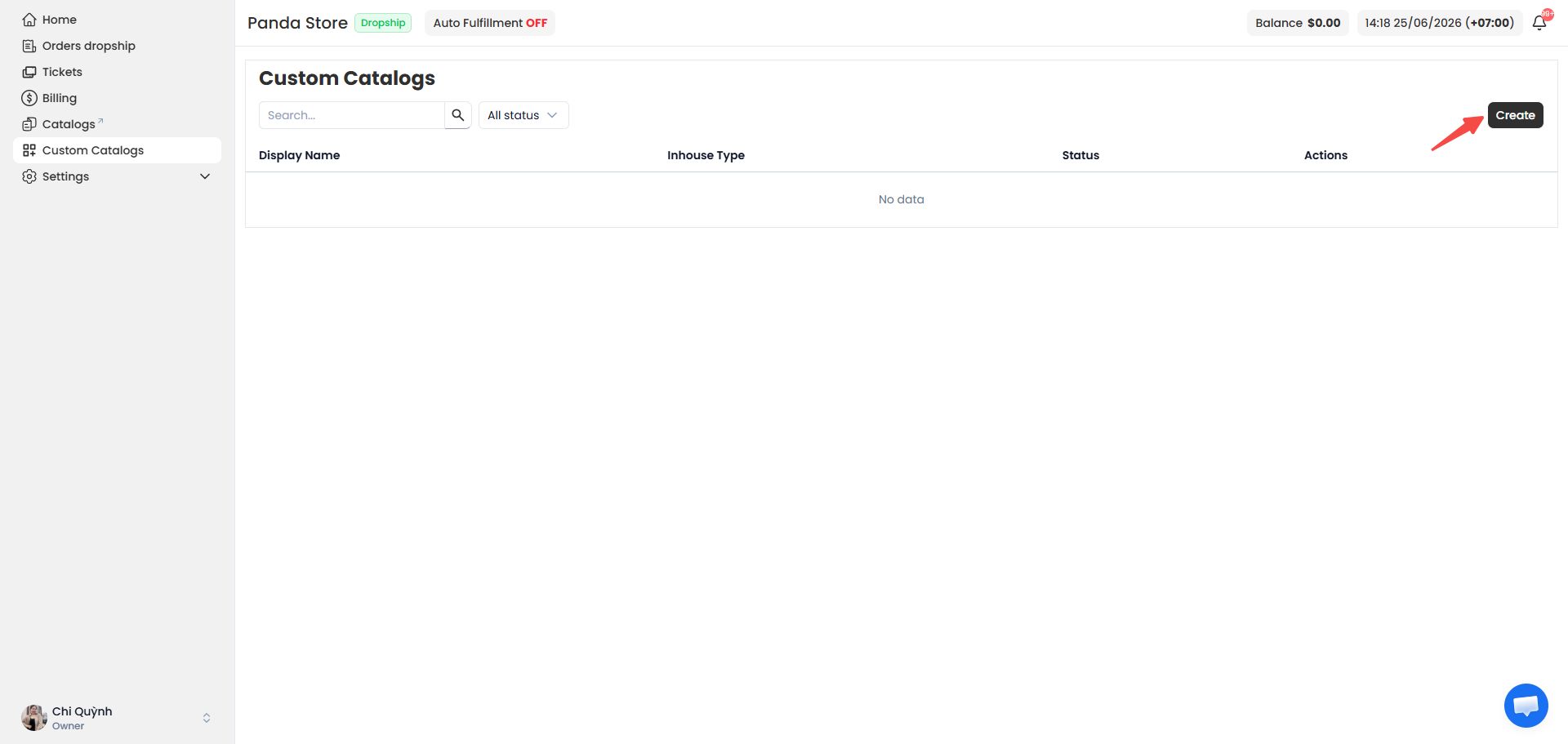
Navigate to Custom Catalogs and click Create to create a new product entry.
The Create Custom Catalog screen will be displayed as shown below.
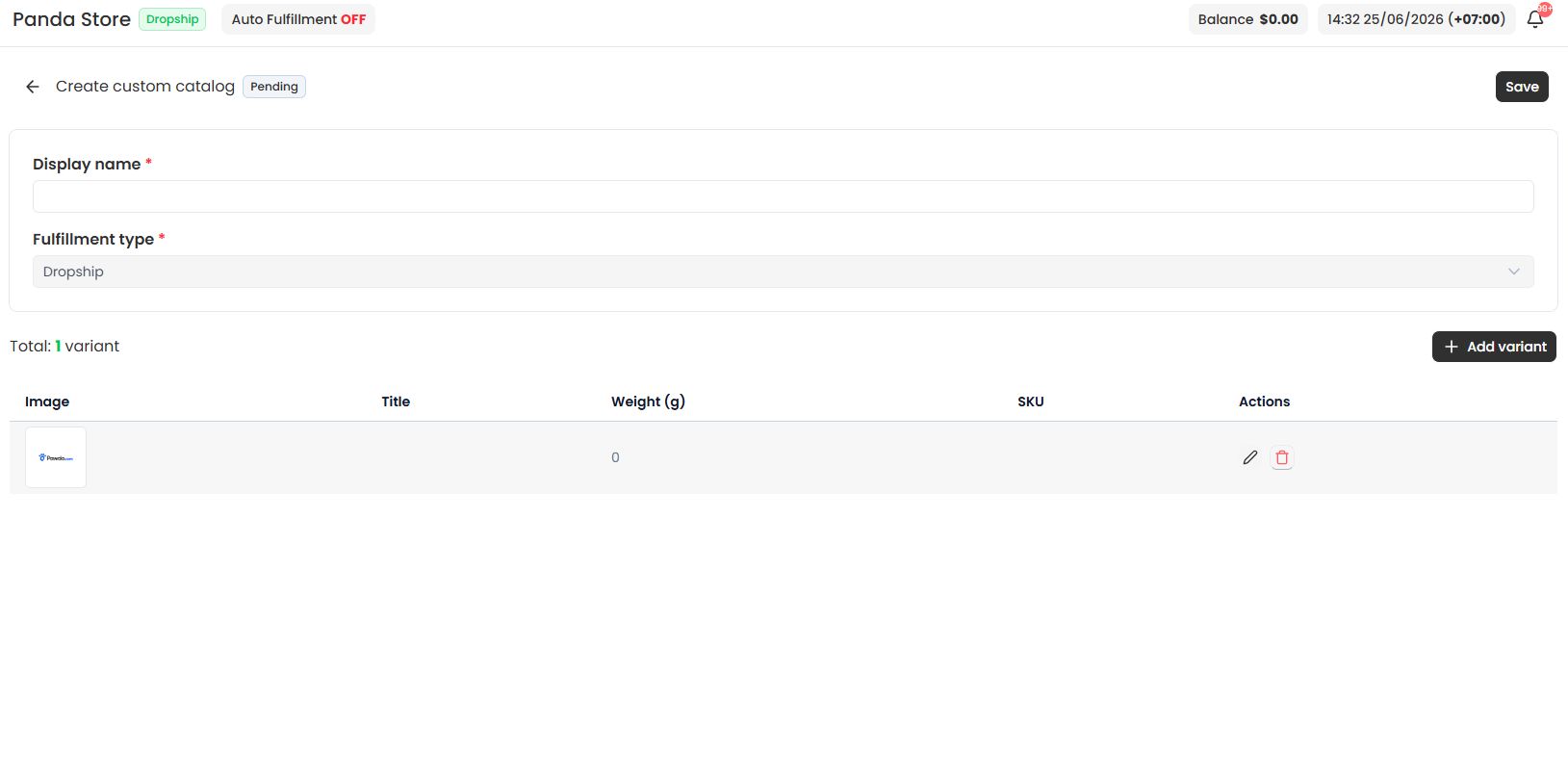
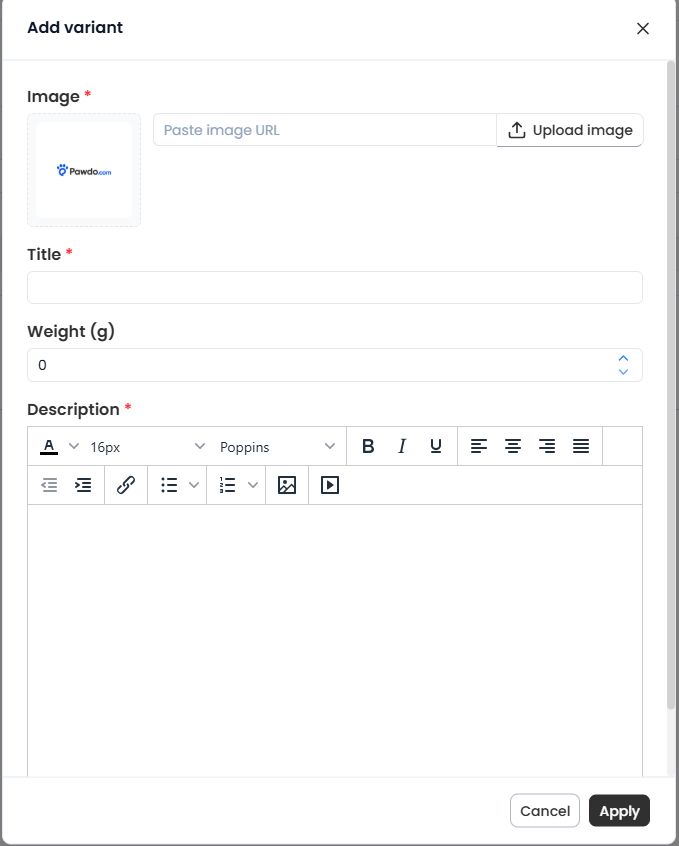
When creating a new catalog, the system automatically generates one empty variant record by default. You can update the first variant directly in this record.
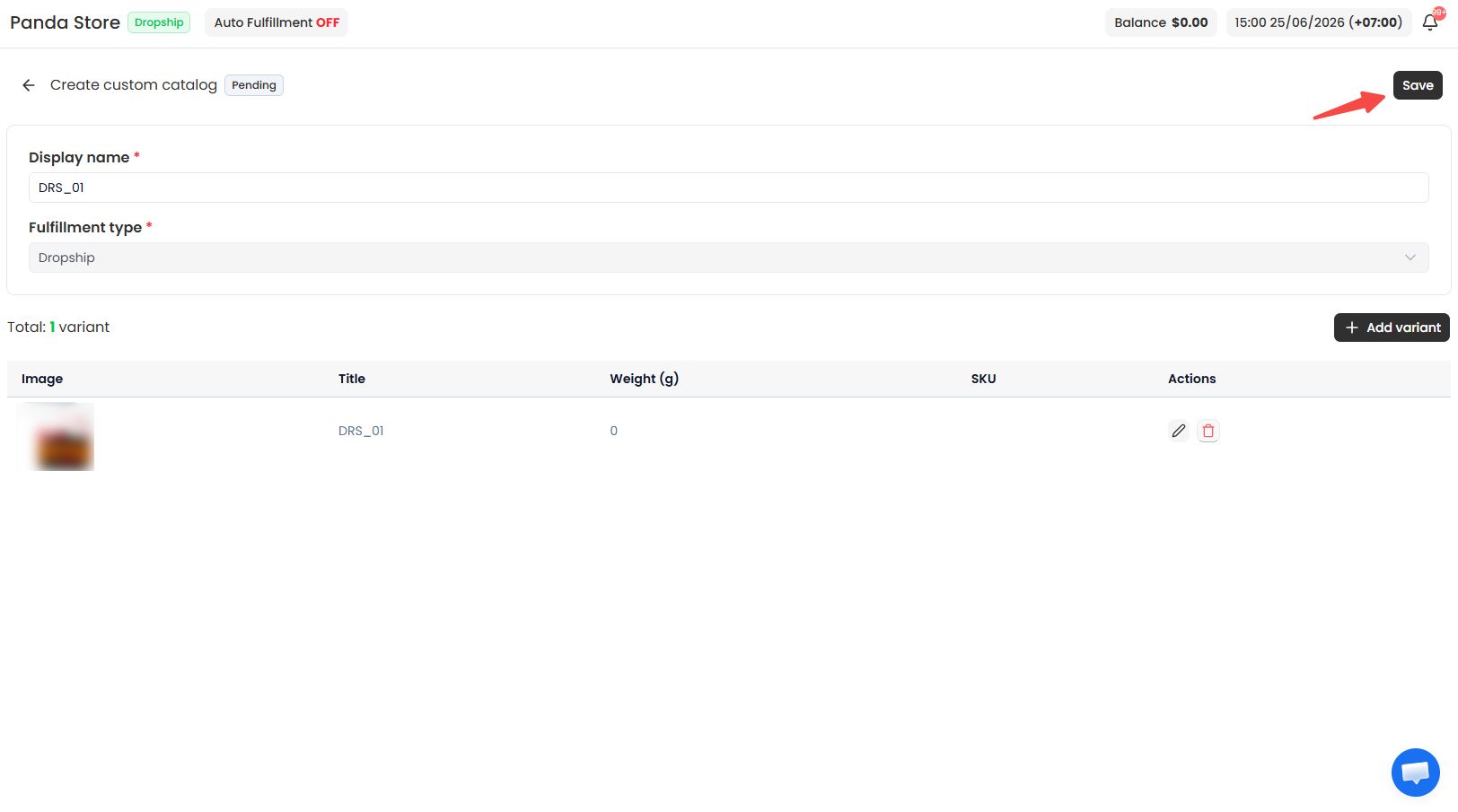
Once all required information has been completed, click Save in the top-right corner of the screen.
The new catalog will appear in the Custom Catalogs list with the status Pending and cannot be used immediately.
In addition to creating catalogs manually, you can use an Excel file to bulk import custom catalogs into the system, helping save time and improve efficiency.
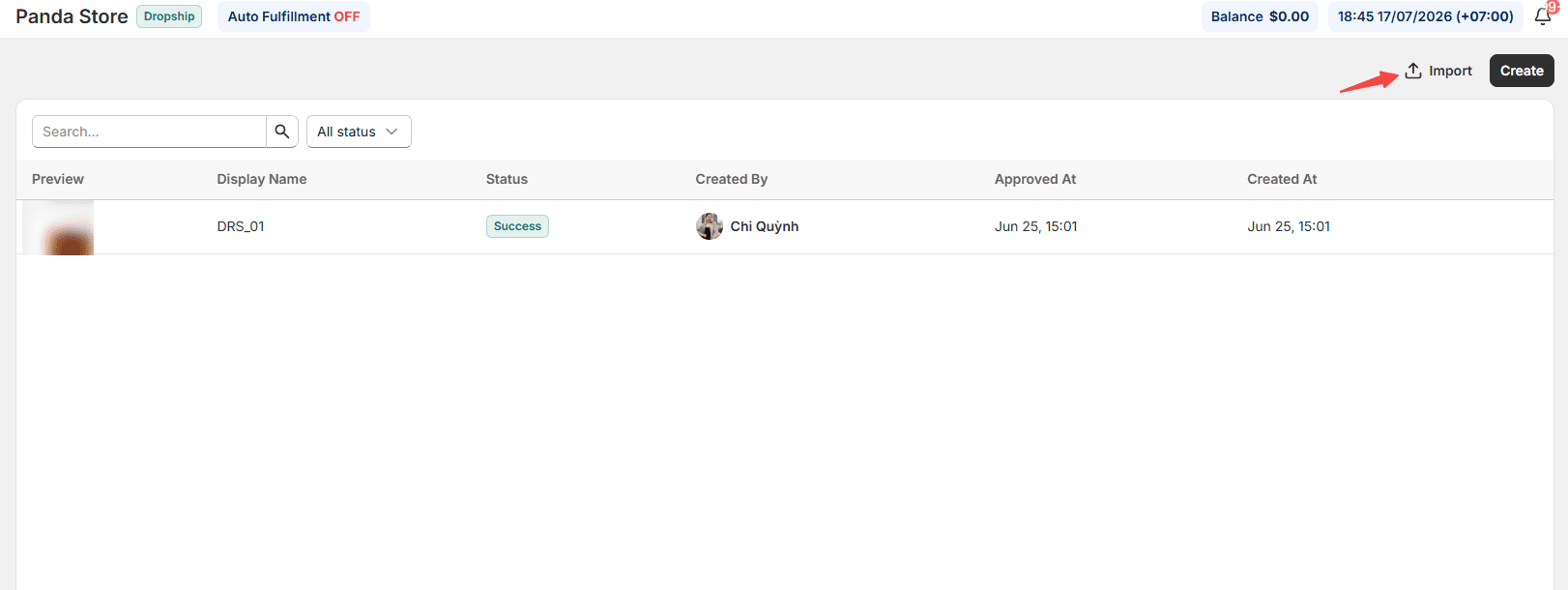
On the Custom Catalog page, click Import to upload your Excel file.
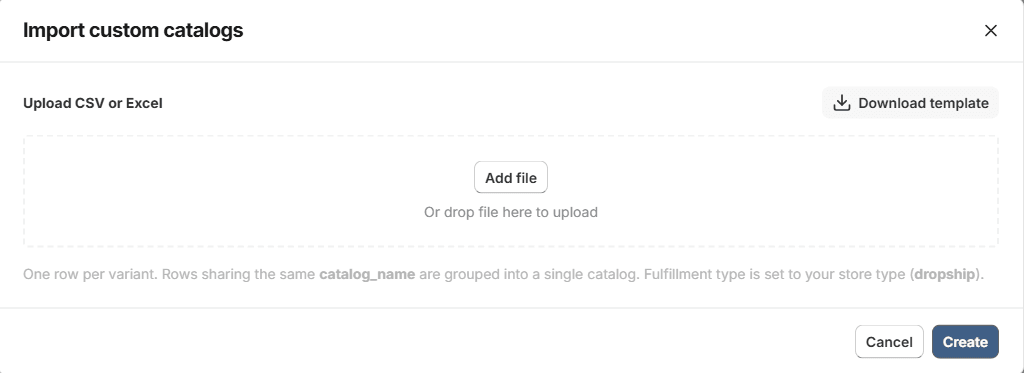
Fill in the required information in the template:
To create multiple items within the same catalog using the Import feature, use the same catalog_name value for all items that belong to that catalog in the import file. The system will use the catalog_name field to group those items and create them under a single catalog.
Note: If the rows contain different catalog_name values, the system will create separate catalogs for each unique catalog name.
After being created manually or imported into the system, the catalog will be reviewed and processed by the operations team. During this stage, its status will be Pending.
After the review and processing are completed, the catalog status will be updated accordingly. The catalog and its variants will be available for use once the final status changes to Success.
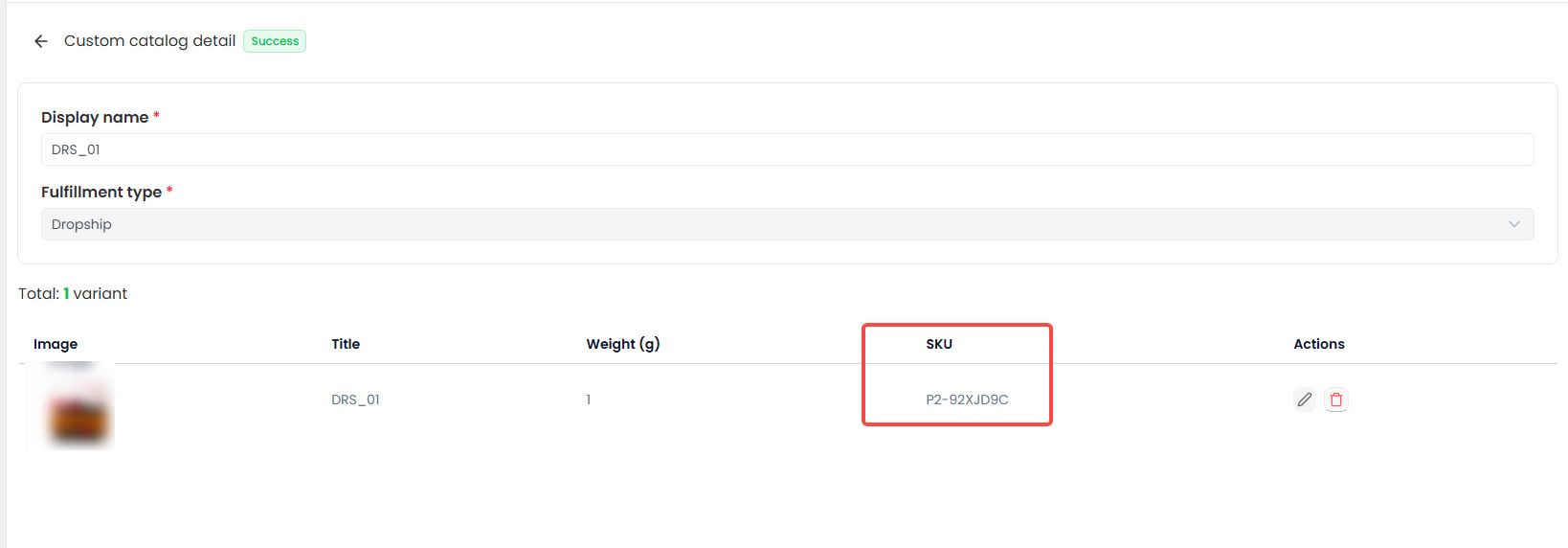
Please use the SKU generated by the system in the Custom Catalog Detail page when creating orders in the system.
If you encounter any issues related to the Custom catalog, please contact Pawdo’s support team via Facebook for assistance.