English
English
Appearance
Note:
- This feature is only available for Dropship stores.
- A bundle can only be created from variants that already exist in the system.
The Bundle feature, found in the Catalog menu, lets you create a combo-style variant. You can group several individual variants, set a quantity for each one, and push orders as a combo using a single SKU.
When an order is imported using a Bundle variant, the system automatically splits the order into its individual products with the quantities configured in the Bundle.
On the Bundle page, click Create to open the creation screen.
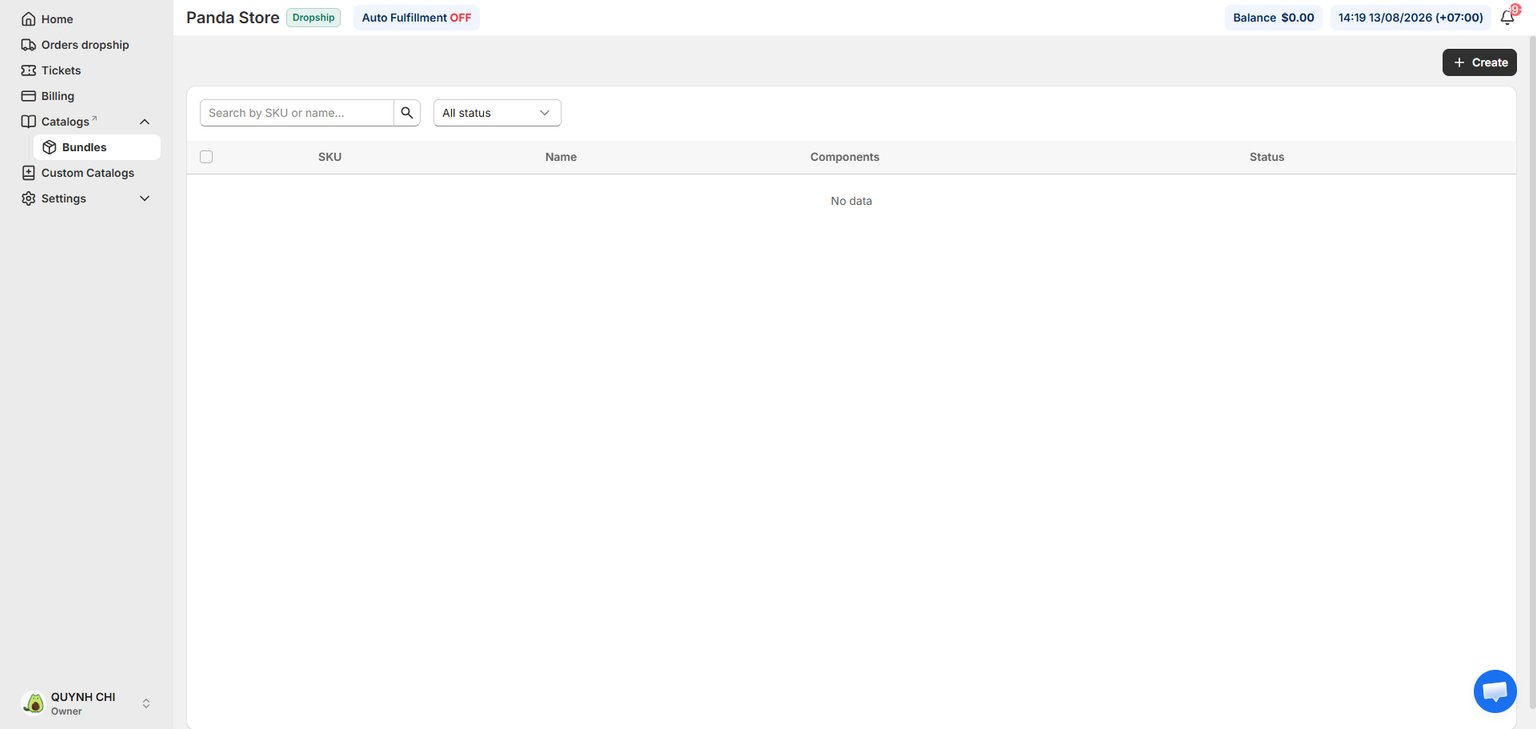
The New bundle screen shows the fields to fill in, as below:
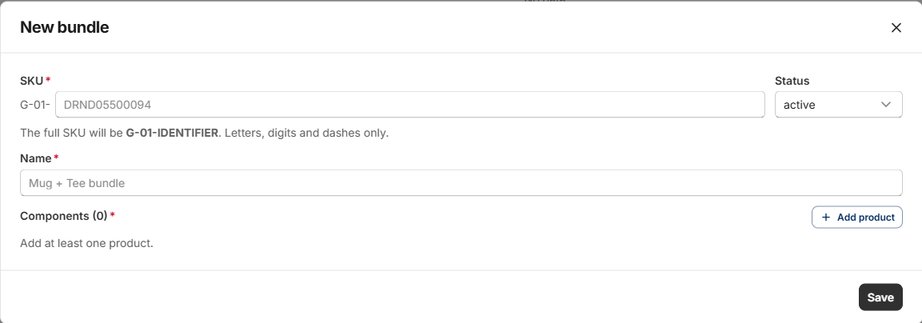
G-Seller_Code-IDENTIFIER (for example, G-01-1989). Letters, digits and dashes only.active / inactive).After clicking Add product, the Product Selection window opens. Here you can search for products by Name or SKU by choosing the criterion in the dropdown to the left of the search bar.
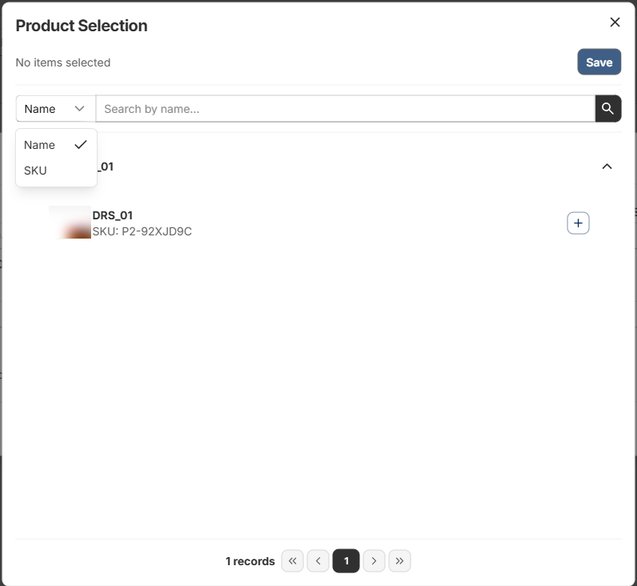
Select the individual products you want to include in the combo, then click Save.
Once products are selected, each component in the bundle can be customized:
− / + buttons.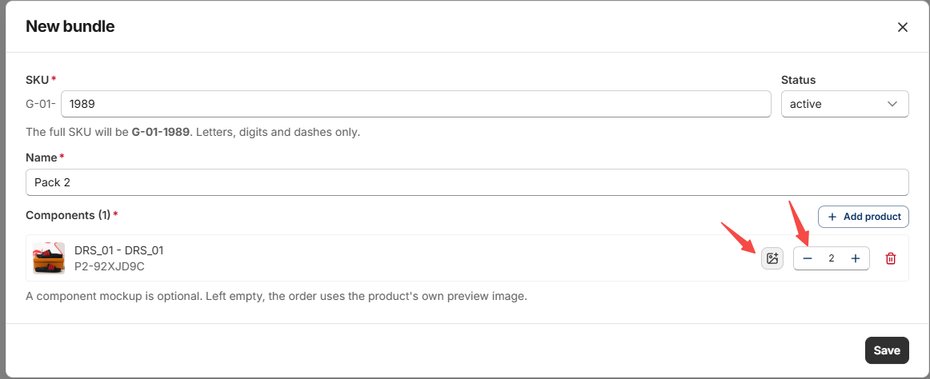
When you are done, click Save to save the bundle.
Once the bundle status is active, you can import orders using the new bundle variant with a SKU in the form G-Seller_Code-IDENTIFIER (for example, G-01-1989).
When an order is imported using the Bundle variant, the system automatically splits the order into its individual products with the quantities configured in the Bundle.
If you encounter any issues related to the Bundle feature, please contact Pawdo's support team via Facebook for assistance.